HaychDev Connect
Turn your WordPress site into an MCP server. Claude, Cursor, and other AI assistants connect directly to your site — you control exactly which abilities are exposed. No cloud relay.
Last updated
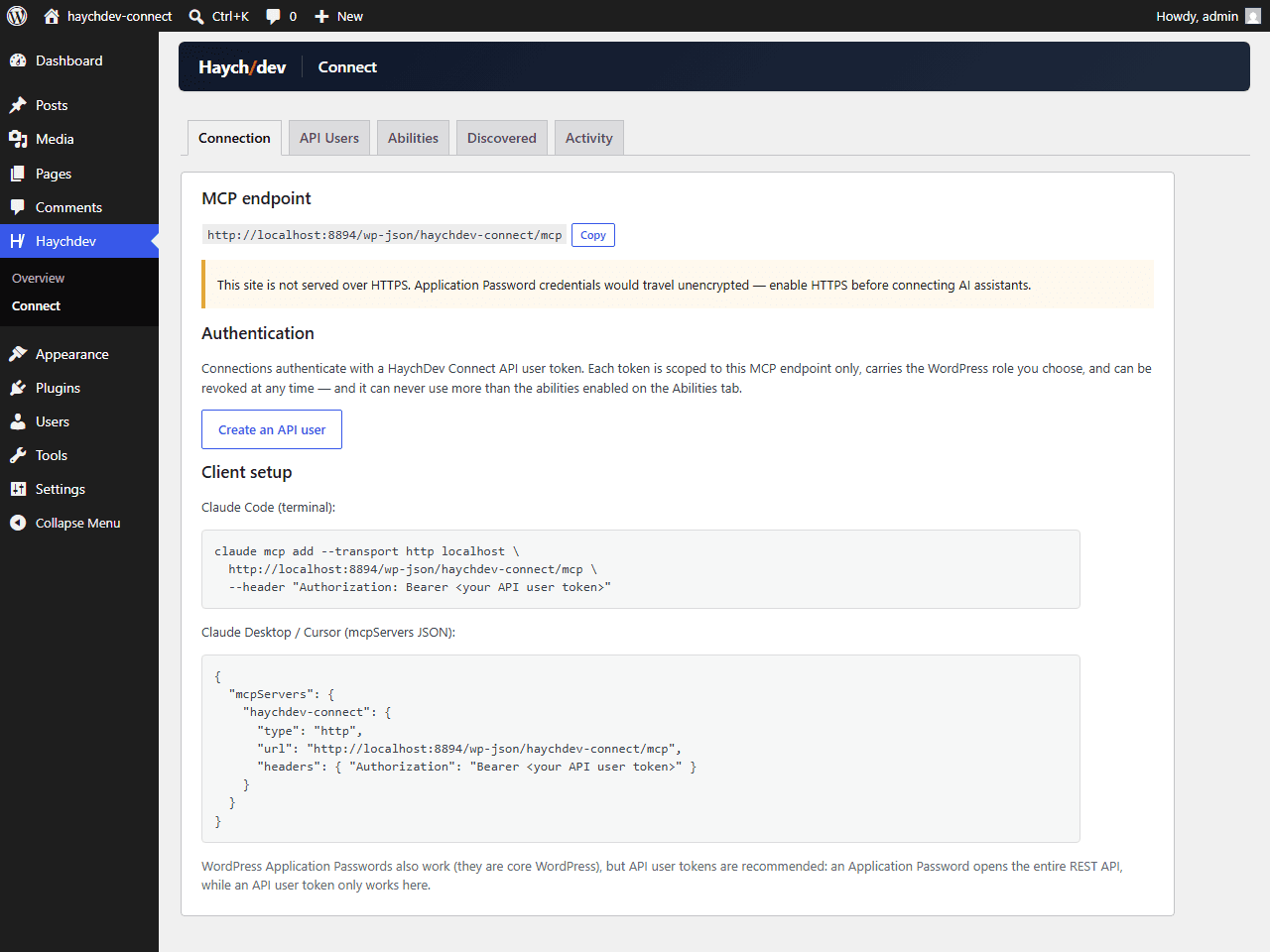
HaychDev Connect turns your WordPress site into an MCP (Model Context Protocol) server. AI assistants such as Claude, Cursor, or Windsurf connect directly to your site over HTTPS and can help manage it — with you in full control of exactly which capabilities are exposed.
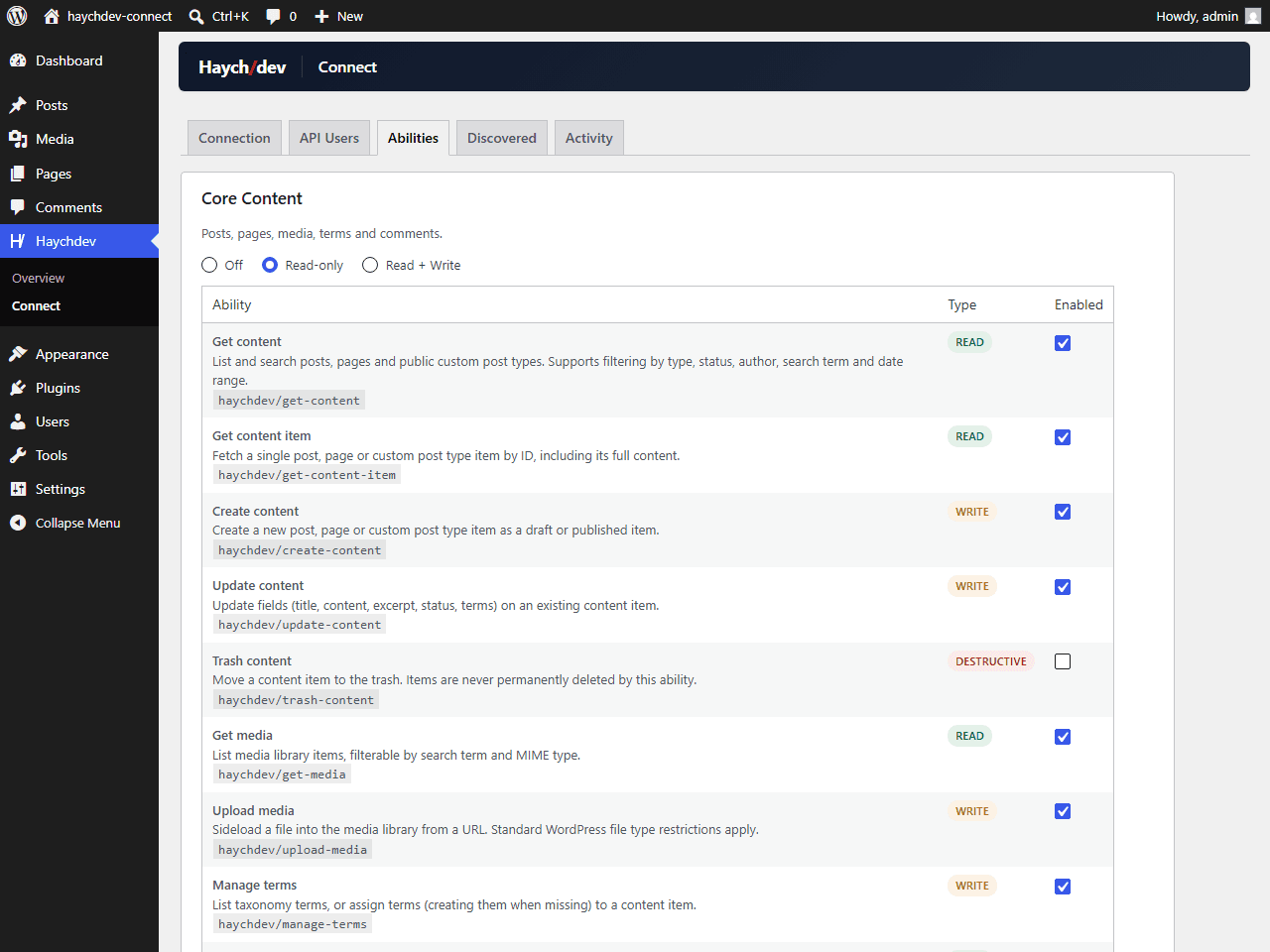
Like every HaychDev plugin, it's privacy-first: your site is the server, and there is no cloud relay, no telemetry, and no external API. Abilities are organised into groups — Core Content, Site Management, Appearance & Themes, plus abilities other plugins register via the WordPress Abilities API — each switchable between Off, Read-only, and Read + Write, with destructive actions individually opt-in on top. Every ability enforces WordPress capabilities server-side, so a connected client can never do more than the role behind its token allows.
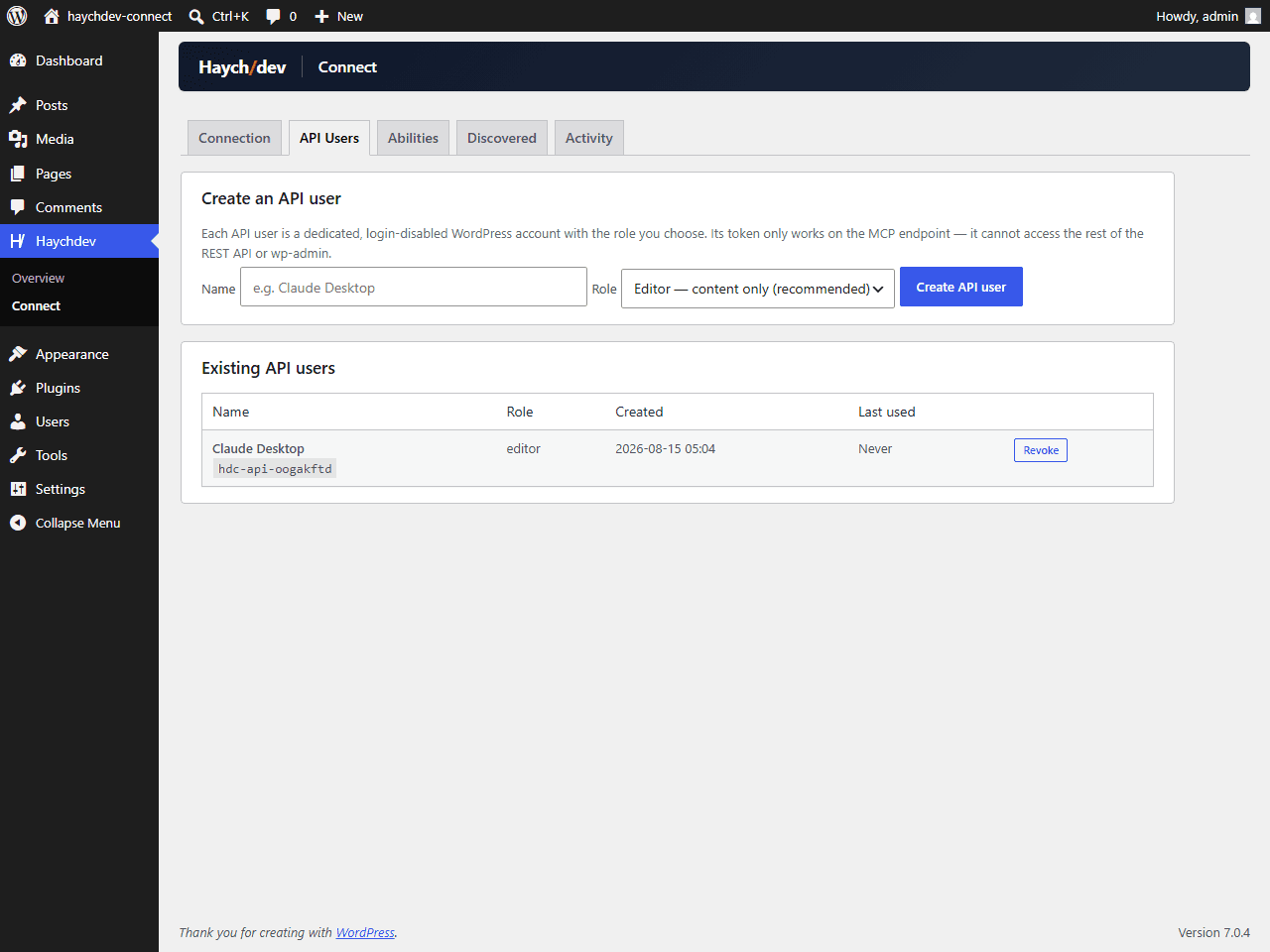
Authentication uses dedicated API users: revocable bearer tokens scoped to the MCP endpoint only, each backed by a login-disabled WordPress account with the role you choose. An activity log records the last 100 tool invocations, so you always know what your assistant actually did.
Why HaychDev Connect
- Your site is the server
HaychDev Connect makes no calls to any external service — no relay, no telemetry, no third-party API. Your MCP client talks directly to your site's REST API over HTTPS, and no data leaves your site except to the client you configure and authenticate yourself.
- You decide what AI can touch
Abilities are grouped — Core Content, Site Management, Appearance & Themes, and abilities discovered from other plugins — and each group can be Off, Read-only, or Read + Write, with a switch per individual ability. Content is read-only out of the box; everything else starts off.
- Capability checks, not just toggles
Every ability enforces WordPress capabilities server-side. Toggles are never the only gate — a connected client can never do more than the role behind its token allows, no matter what is switched on.
- Tokens you can actually revoke
Create an API user, pick a role (Administrator, Editor, or Author), and get a bearer token shown once and stored hashed. The token works only on the MCP endpoint — not the rest of the REST API, not wp-admin — the backing account can't log in interactively, and you can revoke it any time. Core Application Passwords work too if you prefer them.
- Destructive actions are opt-in twice
Trashing content, editing theme files, and deactivating plugins are flagged as destructive and stay off until you enable each one individually — on top of its group being set to Read + Write. Theme file writes always create timestamped backups first.
- Extensible via the Abilities API
Abilities that other plugins register through the WordPress Abilities API show up in a Discovered group, individually opt-in. As the plugin ecosystem adopts the API, your AI assistant's reach grows — always on your terms.
Screenshots
What's included
Free
- Direct MCP endpoint on your own site — AI clients like Claude, Cursor, and Windsurf connect over HTTPS, no cloud relay in between
- Ability groups with Off / Read-only / Read + Write switches: Core Content, Site Management, Appearance & Themes
- Core Content abilities — posts, pages, custom post types, media, categories/tags, comments (read-only by default)
- Discovered abilities — capabilities other plugins register via the WordPress Abilities API, individually opt-in
- Destructive abilities (trash content, edit theme files, deactivate plugins) require an extra per-ability opt-in
- API users — revocable bearer tokens scoped to the MCP endpoint only, each backed by a login-disabled account with the role you choose
- Theme file edits create automatic timestamped backups; DISALLOW_FILE_MODS is always respected
- Activity log of the last 100 tool invocations — see exactly what your AI assistant did
FAQ
- What is MCP and why would I want it on my site?
- MCP (Model Context Protocol) is the open standard AI assistants use to connect to external tools. With HaychDev Connect installed, assistants like Claude, Cursor, or Windsurf can help manage your site — draft and update posts, organise media, review comments, check plugins — using abilities you have explicitly switched on.
- Does this send my data anywhere?
- No. There is no relay, no telemetry, no external API. Your MCP client talks directly to your site's REST API over HTTPS, and nothing leaves your site except to the client you configure and authenticate yourself.
- How do clients authenticate?
- With a HaychDev Connect API user. You choose a role (Administrator, Editor, or Author) and get a bearer token — shown once, stored hashed. The token only works on the plugin's MCP endpoint, the backing account cannot log in interactively, and you can revoke it at any time. Core WordPress Application Passwords also work if you prefer them.
- What can an AI assistant do by default?
- Read content — nothing more. Core Content starts read-only; Site Management, Appearance & Themes, and Discovered abilities all start off. Destructive abilities like trashing content or deactivating plugins additionally require an individual per-ability opt-in.
- How do I turn abilities off?
- wp-admin → HaychDev → Connect → Abilities. Group-level switches (Off / Read-only / Read + Write) plus a switch per ability. There's also an activity log showing the last 100 tool invocations, so you can audit what happened.
- Can it edit my theme files safely?
- Theme file editing is off by default behind a plugin-managed toggle and the edit_theme_options capability. Every write creates a timestamped backup first, and DISALLOW_FILE_MODS is always respected — if your host locks file modifications, the plugin honours that.
- Which WordPress and PHP versions do I need?
- WordPress 6.9 or later and PHP 8.1 or later. The plugin builds on the WordPress Abilities API and the MCP adapter, which is why it needs a current stack.